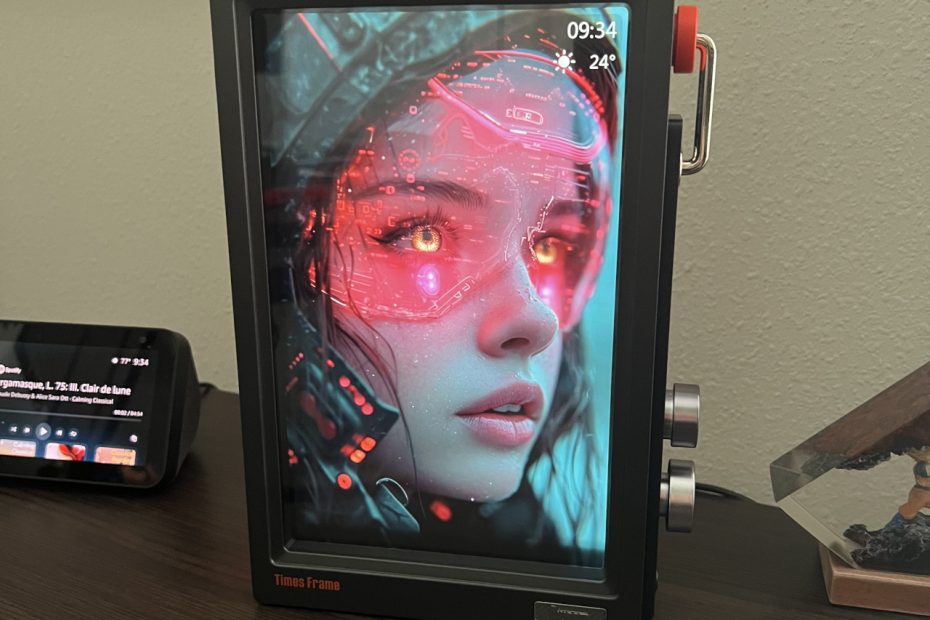

Your desk probably looks like mine used to. A couple of photos in frames, maybe a plant that’s half alive, and the usual pile of random cables. It works, but it’s not exactly inspiring.
That’s when I came across the Divoom Times Frame. At first glance, it looks like a sleek digital picture frame. But it does a whole lot more. Instead of just cycling through family photos, it brings your desk to life with animated pixel art, weather updates, stock tickers, and even old-school themed templates.
Here’s where it gets interesting. Divoom isn’t just selling a frame. They’ve built a community of pixel artists who constantly create and share new designs. That means your frame never feels stale. One day you’ve got a cute 8-bit cat waving at you, the next day your screen is running a nostalgic Windows 95 theme.
It’s digital art mixed with desk utility, powered by thousands of creators. I didn’t realize how much a frame could transform my workspace until I plugged this one in.
What Exactly Is a Smart Picture Frame?
Traditional picture frames just sit there. They hold a single photo until you decide to swap it out months later. Digital picture frames took that concept and made it slightly more convenient by rotating through multiple photos on a screen.
Smart picture frames go further. They connect to Wi-Fi and pull content automatically, whether that’s photos from cloud services, weather information, calendar events, or news updates. The idea is to create a display that’s both personal and useful, giving you information at a glance without needing to pull out your phone.
Most smart frames focus on being a better photo frame. They integrate with services like Amazon Photos, Google Photos, or iCloud, so your latest vacation shots appear automatically. It’s convenient for displaying memories, especially if you’re buying one for parents or grandparents who don’t want to fuss with technology.
The Divoom Times Frame takes a completely different approach. Yes, it can show your photos, but that’s not really the point. This frame is built for pixel art, animations, and customizable displays that make your desk feel alive. It’s less about preserving memories and more about creating an ever-changing piece of digital art.
A Different Take on the Category
The Divoom Times Frame flips the traditional smart frame idea on its head. Instead of focusing on your personal photo library, it taps into a massive community of pixel artists who create content specifically for these displays.
After unboxing mine, I spent a solid two hours browsing the community art through the companion app. I went straight to the video game category and picked out pixel art inspired by old 8-bit games I grew up with. Once I had a handful, I created my own custom playlist. The result is a rotating gallery of retro gaming nostalgia that constantly draws attention.
The transparent design sets it apart visually too. Where most digital frames try to look like traditional wood or metal frames, the Divoom Times Frame embraces its tech identity. The see-through body gives it a futuristic look that fits naturally on a modern desk setup.
Quick Specs:
- Display: 10.1-inch transparent LCD
- Connectivity: Wi-Fi enabled
- Controls: 2 rotating knobs (with click buttons) + 2 navigation buttons
- Audio: Built-in speaker
- Power: USB-C (cable included, adapter not included)
- Price: Around $150-200 on Amazon
- Available here
Meet Divoom and the Pixel Art Community
Divoom’s real superpower isn’t hardware—it’s the creative ecosystem they’ve built. Inside their companion app, you’ll find thousands of designs shared by artists all over the world. Some are simple animated icons, others are elaborate scenes that look like they were pulled straight from a 16-bit video game.
The variety is staggering. Browse through categories like gaming, cyberpunk, nature, holidays, or abstract art. Each design is user-created and free to download. For creative types, there’s also a built-in editor where you can design your own pixel art and share it back to the community.
This approach completely changes how the frame feels over time. With a traditional photo frame, you see the same images day after day. With the Divoom, new art appears in the library regularly. Your frame can evolve with your mood, the season, or whatever aesthetic you’re feeling that week.
Divoom has built an entire lineup of pixel art displays, from portable Bluetooth speakers with screens to larger panels designed specifically for cyberpunk-themed setups. The Times Frame sits in the middle—big enough to make an impact on your desk, but not so large that it dominates your space. If you want to explore their full range, check out their Amazon storefront.
Unboxing and First Impressions
Unboxing the Divoom Times Frame feels premium right away. The frame itself is surprisingly heavy and sturdy. It stands on its own without any wobbling, and the weight gives it a quality feel that cheaper frames lack.
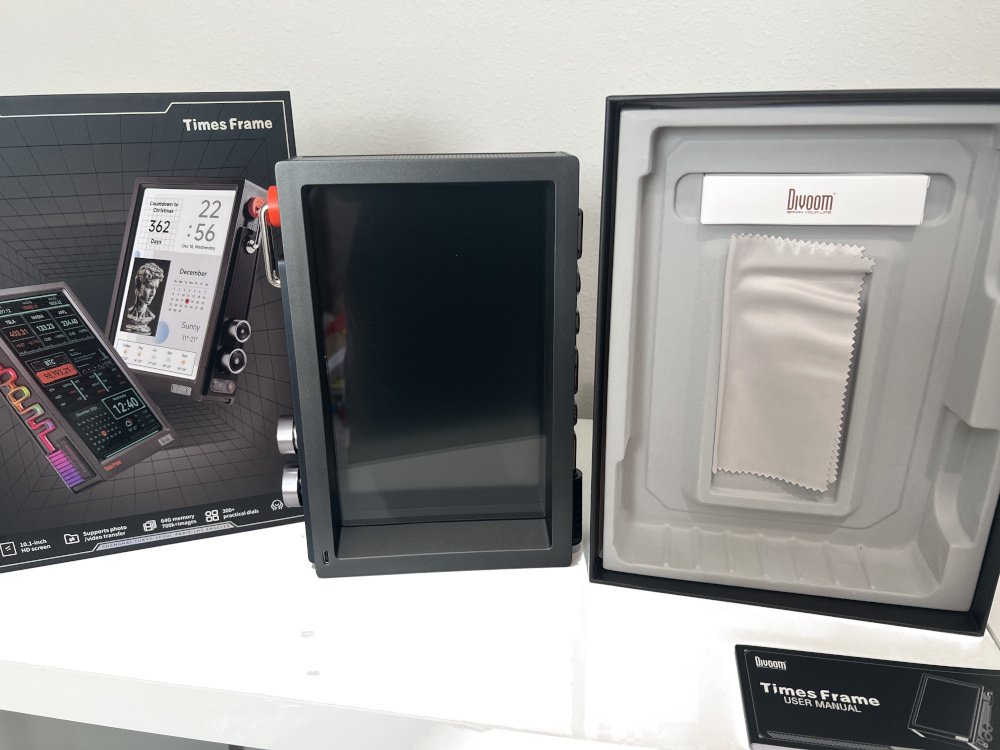
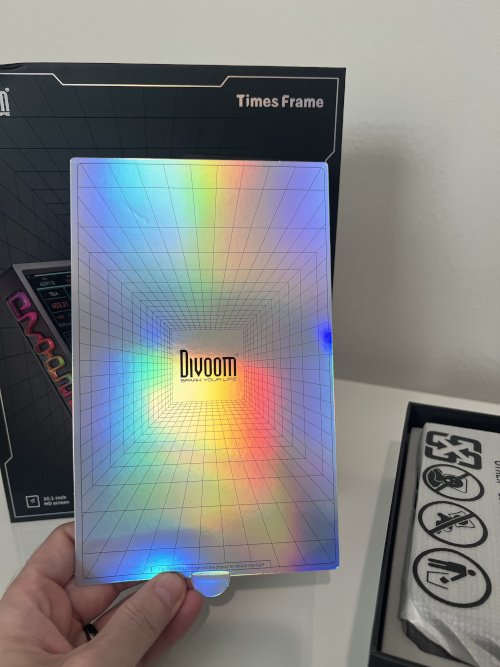
Inside the box, you get a thick USB-C cable, a microfiber cloth for cleaning, and a small anti-glare card. Notably absent? A power brick. You’ll need to use your own USB adapter, which is a minor inconvenience but not a dealbreaker.
The transparent body is the first thing that catches your eye. Both the front and back are see-through, which creates an interesting layered effect. You can actually see the back panel through the front screen when it’s off—it’s a unique design choice that looks more futuristic than traditional frames.
That transparency comes with a caveat though. Both sides are reflective, which can cause glare depending on your lighting setup. Divoom includes a small card to help reduce glare on one side, but positioning matters. I had to experiment with placement to find a spot where reflections didn’t distract from the display.
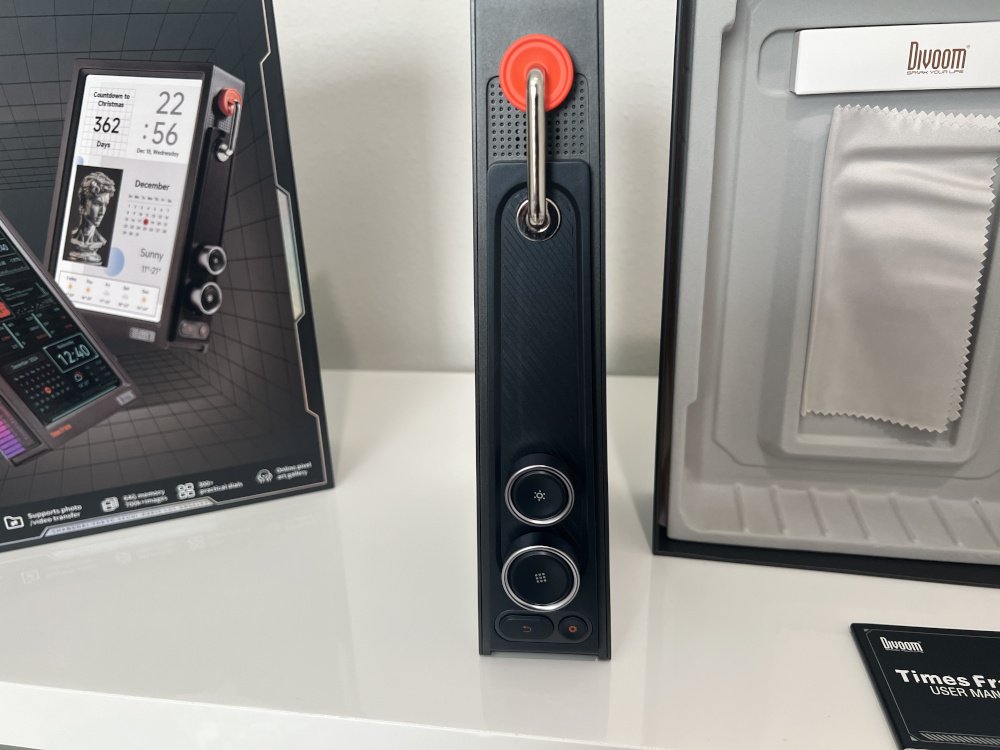
The side controls feel well-designed. Two larger knobs that also click as buttons, plus two smaller buttons for navigating menus. Everything has a satisfying tactile response. I also spotted speaker holes along the side—a nice touch even though audio isn’t the main feature here.
One thing I learned quickly: the back cover matters more than you’d think. Without it installed, the back panel glows bright white after startup, and that light bleeds onto whatever surface is behind the frame. With the cover on, it looks finished and professional. Don’t skip this step.
Setup: Simple but With One Catch
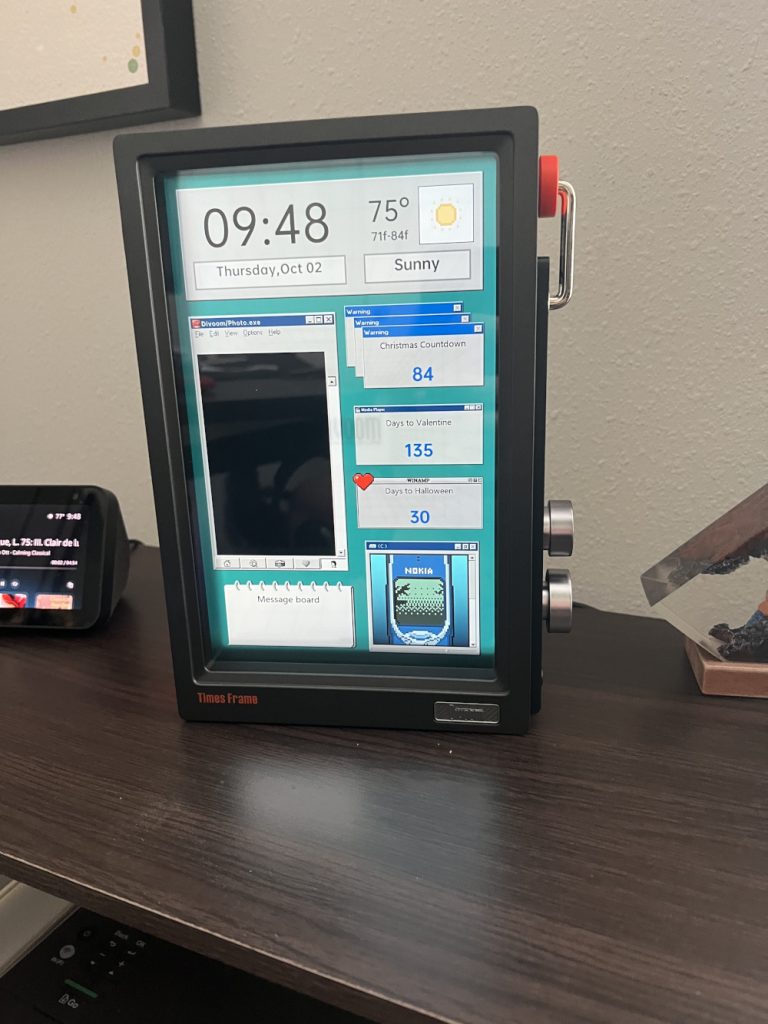
Setup is straightforward. Plug in the USB-C cable, connect to your Wi-Fi network, and the frame boots into a default slideshow almost immediately. Templates appear right away, and I couldn’t resist trying the Windows 95 theme. Turning the knobs changes what’s displayed, and the LED-lit edges respond with smooth, colorful glows.
When you rotate the knob, the LEDs on the left side light up bright and responsive. It’s a small detail, but it makes the frame feel interactive rather than passive.
Adding your own photos works, but here’s the catch: you need to upload each photo manually through the app, one at a time. There’s no integration with Amazon Photos, Google Photos, or iCloud. If you only want to load a handful of personal shots, it’s fine. But if you’re expecting the seamless cloud syncing that other smart frames offer, you’ll be disappointed.
Honestly, though? After using it for a few weeks, I rarely show personal photos on it. That’s not what this frame is built for.
Where This Frame Comes Alive: The Pixel Art Experience
Once I connected to the Divoom app and started exploring the pixel art library, everything clicked. This is what the frame was designed to do, and it’s where it completely separates itself from every other digital display.
The app connects to Divoom’s massive community library. Thousands of creators upload their designs—from simple looping icons to complex animations that look like tiny video game cutscenes. Browsing through it feels like scrolling an art gallery built for 8-bit enthusiasts.
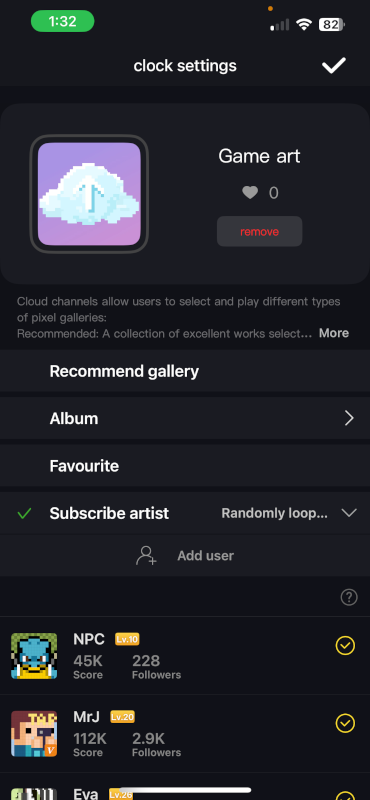
I spent hours curating my collection. I loaded up characters, retro game landscapes, and small animations that reminded me of classics like Mega Man and Castlevania. Then I built a playlist so they rotate every few minutes. The result is mesmerizing. It’s like having a retro arcade quietly running on my desk.
What makes this so engaging is the variety and constant freshness. One day I keep things playful with pixel cats or cityscapes. The next day, I switch to moody cyberpunk neon art. And because the community is always adding new content, there’s always something different to try.
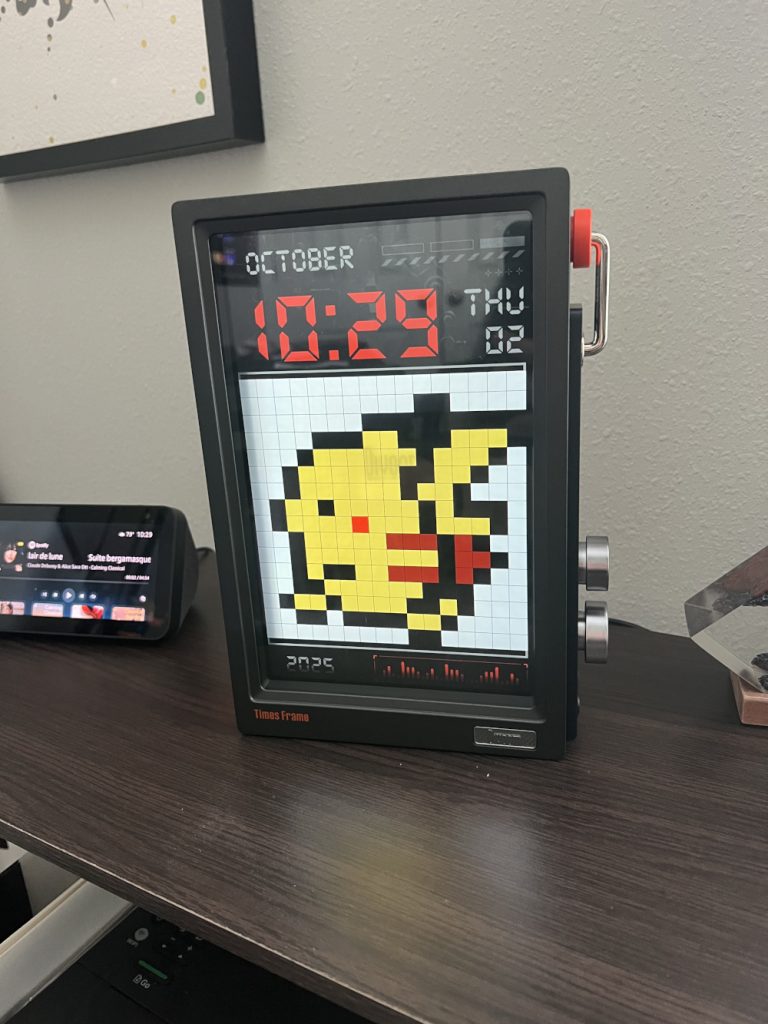
The pixel art also gives the frame personality in a way static photos never could. These aren’t just images—they’re living animations. A character waves, rain falls across a cityscape, or a neon sign flickers. Every glance at the frame shows something slightly different, which keeps your desk from feeling stale.
At this point, the frame feels less like a gadget and more like a little window into a pixel universe. It’s the kind of thing that makes visitors stop and ask, “Wait, what is that?”
The Practical Side: More Than Just Art
While pixel art is the star, the frame earns its spot on your desk with practical features too. You can set it to display the time, date, weather forecasts, calendar events, or even stock market updates. I keep mine rotating between pixel art and a simple info screen so it stays fun but also useful.
These widgets aren’t revolutionary, but they’re well-designed and blend nicely with the overall aesthetic. The weather display uses pixel art styling, so it doesn’t feel out of place next to your animated scenes. It’s a nice balance of form and function.
The built-in speaker is there, but it’s not the main attraction. Audio quality is fine for notification sounds or light background music, but you’re not buying this for its sound system. Think of it as a bonus feature rather than a selling point.
What Could Be Better
No product is perfect, and the Divoom Times Frame has a few rough edges worth mentioning.
Photo management is clunky. Uploading pictures one at a time through the app gets tedious fast. If Divoom wants this to compete as a general-purpose smart frame, cloud photo integration would be a huge improvement. But honestly, I don’t think that’s their target market.
Glare can be an issue. The reflective surfaces look sleek, but they catch light easily. You’ll need to think about placement, especially if you have windows or bright overhead lights nearby. The included anti-glare card helps, but it only covers one side.
No power adapter included. This is a minor annoyance, but at this price point, including a USB power brick would be nice. Most people have spares lying around, but it’s one more thing to think about during setup.
Not ideal for traditional photo frame use. If your goal is to display family photos pulled automatically from your phone, this isn’t the right device. It can do that, but it’s not optimized for it.
Exploring Other Divoom Options
If the Times Frame appeals to you but you want something different, Divoom has several other options worth considering.
The Divoom Times Gate is designed specifically for pixel art enthusiasts who want a more cyberpunk aesthetic. It has a different form factor and leans even harder into the animated display concept.
Divoom also makes smaller portable displays with Bluetooth speakers, as well as larger panel options for more immersive setups. You can explore their full lineup on their website or through their Amazon storefront.
Each device taps into the same pixel art community, so you’re getting access to the same massive library no matter which model you choose. It really comes down to size, design preference, and where you plan to use it.
Frequently Asked Questions
It’s a Wi-Fi-enabled digital display designed to show pixel art, animations, photos, and widgets like time and weather. It doubles as both desk art and a smart display.
No. You need to upload each photo manually through the app. It doesn’t connect to iCloud, Google Photos, or Amazon Photos.
Yes. Built-in templates show time, date, calendar, weather, and stock updates in pixel art styling.
The massive pixel art community. Thousands of creators constantly add new animations and designs, so the content never gets stale.
Absolutely. It’s sturdy, stylish, and constantly changing. The combination of info widgets and pixel art makes it a conversation starter.
Yes. The companion app includes an editor where you can design and upload your own pixel art, then share it with the community.
Final Thoughts
The Divoom Times Frame isn’t trying to be your family photo hub. It’s a mix of smart display, desk accessory, and digital art gallery that brings personality to your workspace.
I’ve had mine running for weeks, and it still catches my attention multiple times a day. Some days it shows retro game art, other days it runs quirky animations from the Divoom community. It’s the kind of gadget that makes your desk feel less serious and more creative.
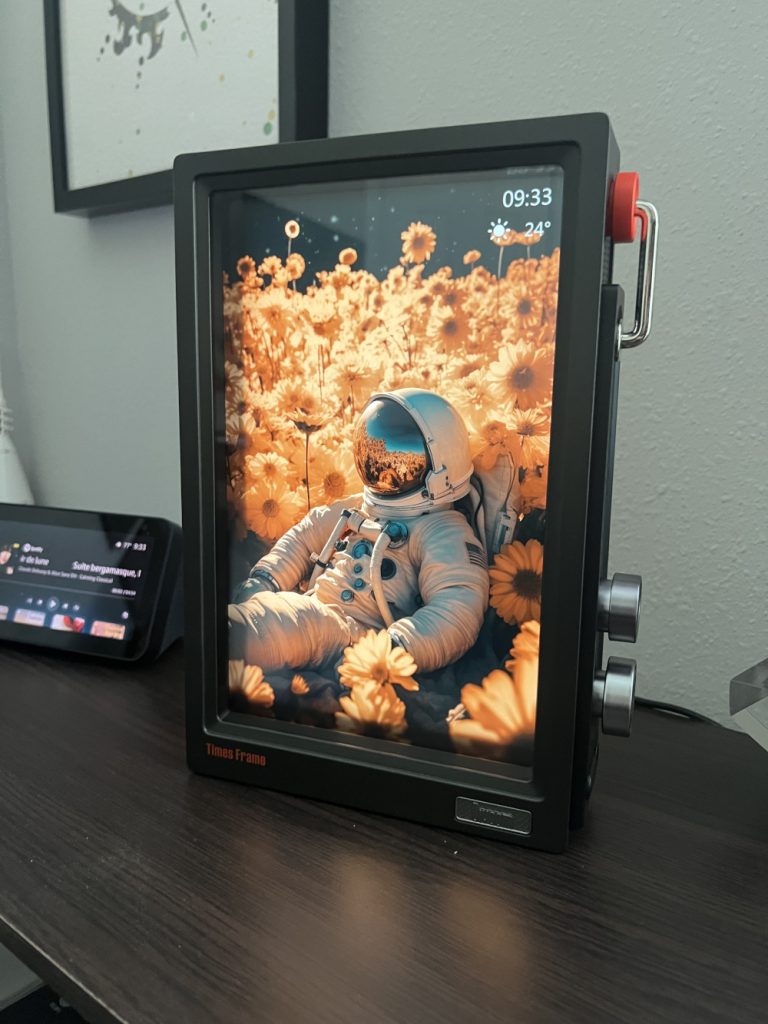
If you want a frame to automatically display family photos from your phone, look elsewhere. But if you want something that blends art, utility, and personality—something that actually makes people stop and ask about it—the Divoom Times Frame delivers.
For techies, gamers, or anyone who appreciates pixel art and retro aesthetics, this is an easy recommendation. It’s functional enough to justify the desk space, but interesting enough that you’ll actually enjoy having it around.