

Ever thought about making your Echo Dot more “you”? As an engineer with a decade of experience in smart tech, I understand the importance of personalizing your devices. Renaming your Echo Dot is more than a fun tweak; it helps you target your devices better with Alexa.
This guide will teach you how to rename your Echo Dot easily. Whether to distinguish between multiple devices or to add a personal touch, I’ll guide you through each step. Let’s get started on this simple journey to personalize your Echo Dot.
Understanding Echo Dot and Alexa: A Brief Primer
What is Echo Dot? The Basics
The Echo Dot is more than just a compact smart speaker; it’s the gateway to making your home smarter. It connects you with Alexa, Amazon’s voice-controlled assistant. This tiny device makes controlling your smart home devices, playing music, and getting information a breeze.
Alexa, More Than Just a Name: Understanding Your Virtual Assistant
Alexa isn’t just a voice responding to your commands; she’s the brain behind your Echo Dot. Think of Alexa as your personal assistant, ready to help with various tasks. From setting alarms to answering trivia, Alexa brings a world of convenience to your fingertips.
The Step-by-Step Guide to Renaming Your Echo Dot
Step 1: Accessing the Alexa App
First things first, grab your smartphone or tablet and open the Alexa app. This app is your control center for all things Echo Dot. It’s free in the App Store and Google Play Store.

Step 2: Navigating to Device Settings
Once in the app, tap on ‘Devices’ at the bottom. This is where all your connected Echo devices are listed. Select the Echo Dot you want to rename to access its settings.

Step 3: Finding Your Echo Dot in the Device List
You’ll see a list of your Echo products in the’ Devices’ section. Scroll through to find the Echo Dot you’re looking to rename.
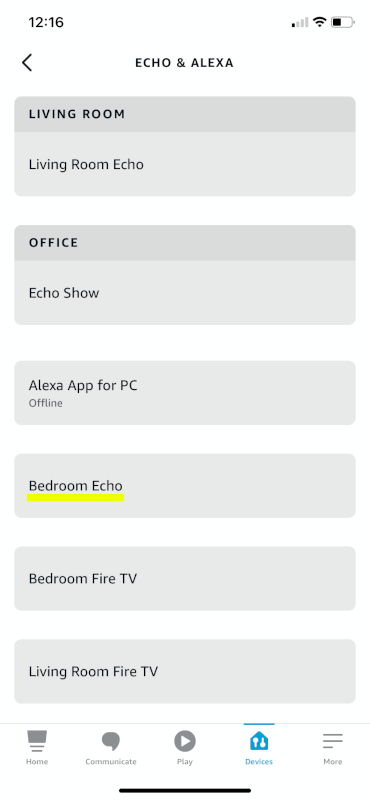
Step 4: Selecting the Edit Name Option
After selecting your Echo Dot, look for the ‘Edit Name’ option. It’s typically under the device’s name and settings.

Step 5: Entering Your Preferred Echo Dot Name
Here’s the fun part. Tap on ‘Edit Name’ and enter your new name for your Echo Dot. Whether it’s a quirky nickname or something more straightforward, the choice is yours.
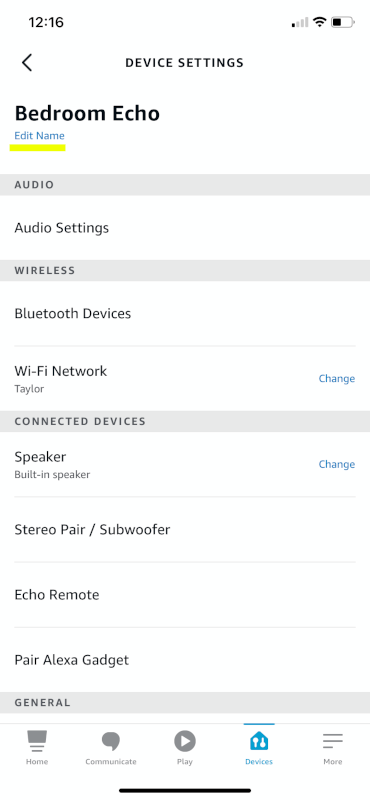
Step 6: Saving Your New Echo Dot Name
After typing in the new name, make sure to save your changes. There’s usually a save or confirm button right there on the screen. This step ensures your Echo Dot recognizes its new identity.
Step 7: Confirming the Change and Testing
Finally, give it a test. Say a command using the new name of your Echo Dot. If everything’s done right, Alexa will respond just as efficiently but now with a more personalized touch.
And that’s it! You’ve successfully renamed your Echo Dot. Simple, right?
Customizing Further: Exploring Alexa’s Wake Words
After you’ve renamed your Echo Dot, there’s another neat trick for customization: changing Alexa’s wake word. This change affects how you interact with Alexa, offering a unique touch to your daily use. While renaming your Echo Dot is about how you refer to your device, adjusting the wake word is all about how Alexa listens to you.
Changing the wake word is simple yet effective. It’s especially handy if you have multiple devices or if you want a bit of variety. To learn more about changing the wake word and exploring the options available, check out this helpful article: Dive into the Alexa Wake Words List.
Troubleshooting Common Renaming Issues
When Alexa Doesn’t Recognize the New Name
Sometimes, after renaming your Echo Dot, Alexa might not respond to the new name immediately. If this happens, try restarting your device. Also, check if the name change was saved properly in the app. A simple sync issue could be the culprit.
Resolving App Glitches and Connectivity Problems
Occasionally, the Alexa app might act up, or your Echo Dot might have connectivity issues. If you’re facing trouble renaming your Echo Dot, ensure your device is connected to Wi-Fi. Restarting the app or smartphone can also help clear up any temporary glitches.
These hiccups are usually short-lived and easily fixable. With a bit of patience and these troubleshooting tips, you’ll have your Echo Dot renamed and responding just the way you want in no time.
Frequently Asked Questions
While you can rename your Echo Dot, Alexa’s name itself remains the same. This is because ‘Alexa’ is the wake word that the device responds to. However, you can change the wake word to a few select alternatives like “Echo” or “Computer.”
You can change your Echo Dot’s name as often as you like. There’s no limit to how many times you can rename it, so feel free to experiment until you find the perfect fit!
No, renaming your Echo Dot won’t affect its functionality. The name change is purely for your convenience and doesn’t alter how the device works or responds to commands.
Get creative with your Echo Dot’s name! Think of your favorite characters from books or movies, or use names that reflect the room it’s in, like “Kitchen Commander” or “Bedroom Buddy.” Have fun with it!
Yes, you can use the same name for multiple Echo Dots, but it might confuse with voice commands. It’s generally better to give each device a unique name, especially in different rooms.
Summary
That’s all there is to renaming your Echo Dot — simple, right? By giving your Echo Dot a new name, you’re not just personalizing it; you’re making your interactions with Alexa more fun and intuitive. Whether for practical organization or a touch of personality, these changes can make your smart home feel more like your own.
I’m curious to hear about your renaming adventures! Share your experiences or any creative names you’ve come up with in the comments. Your insights are valuable, and they help make our community a richer place.
Looking for more Alexa tips and tricks? Dive into our Alexa Archives for more great content. Keep exploring and personalizing your smart home – the possibilities are endless!
Many of the benefits of Alexa come when you have multiple Echos in your home. But once you have a few in various rooms in your home, it can be tricky to remember the names. The problem gets worse if you move homes, or move Echos around as you find the right spot. Then finally when you find the right spot, the name isn’t right anymore. Luckily that’s an easy problem to solve. Renaming, or changing the name of an Echo is quick and painless. Here’s how to rename an Echo Dot or any other Echo device you would like to rename.
Before we dive in, here’s one thing to watch out for. Changing the name of your Echo is not the same as changing the name of Alexa! For more info, learn about the difference between Echo and Alexa.